Browse how-to guides

Events and Secret Santa

How to create an event

Choose an event type, add its details and participants, then review everything before launch.

Complete the event steps

  1. Choose Events from the add menu

    You can also open the Events page and use its create action.

  2. Choose the event type

    Use Gift Wishlist for one recipient, or Gift Swapping for a paired group.

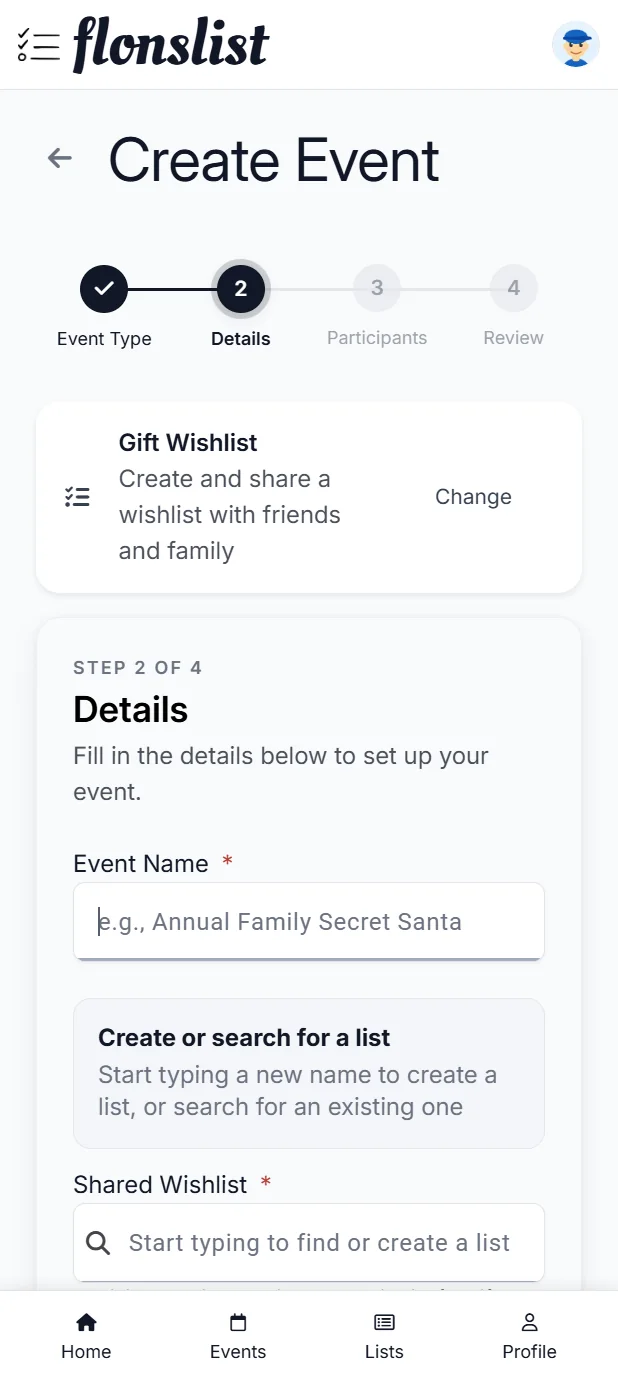
  3. Add event details

    Enter the title, date, description, budget, and linked wishlist fields shown for that type.

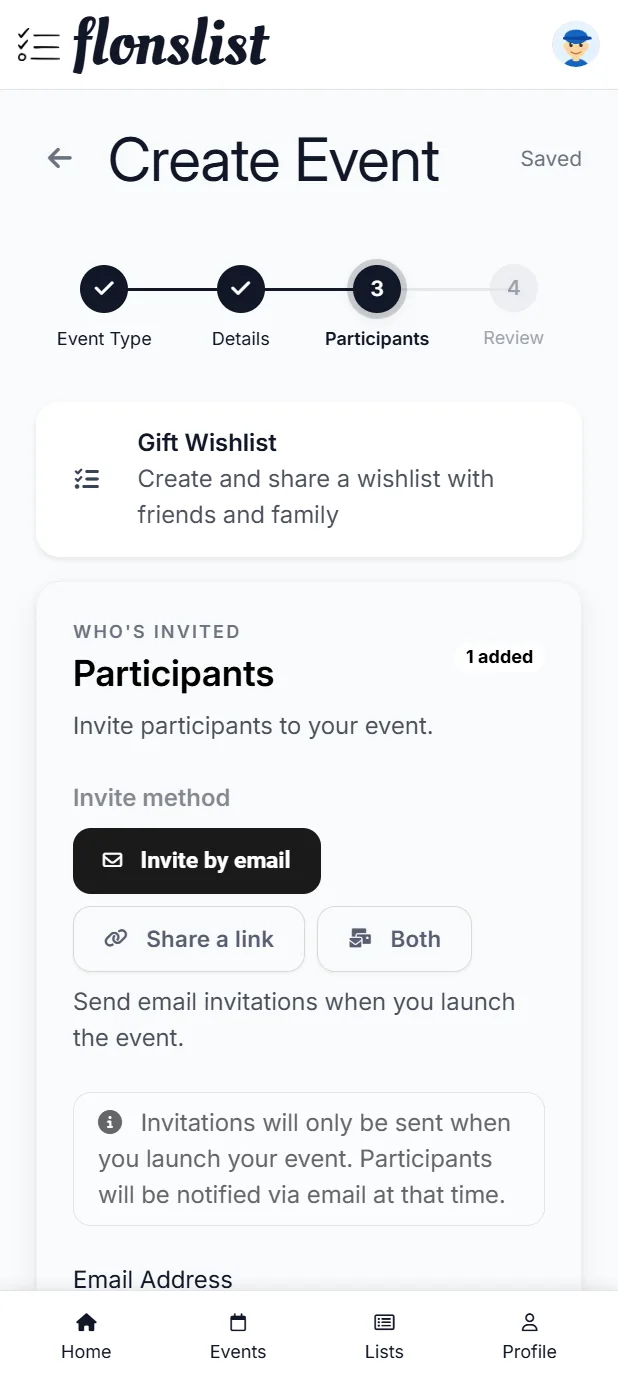
  4. Choose how to invite people

    Invite by email, share a link, or use both.

  5. Configure pairings when required

    Gift Swapping events include pairing visibility, automatic or manual pairing, and optional exclusions.

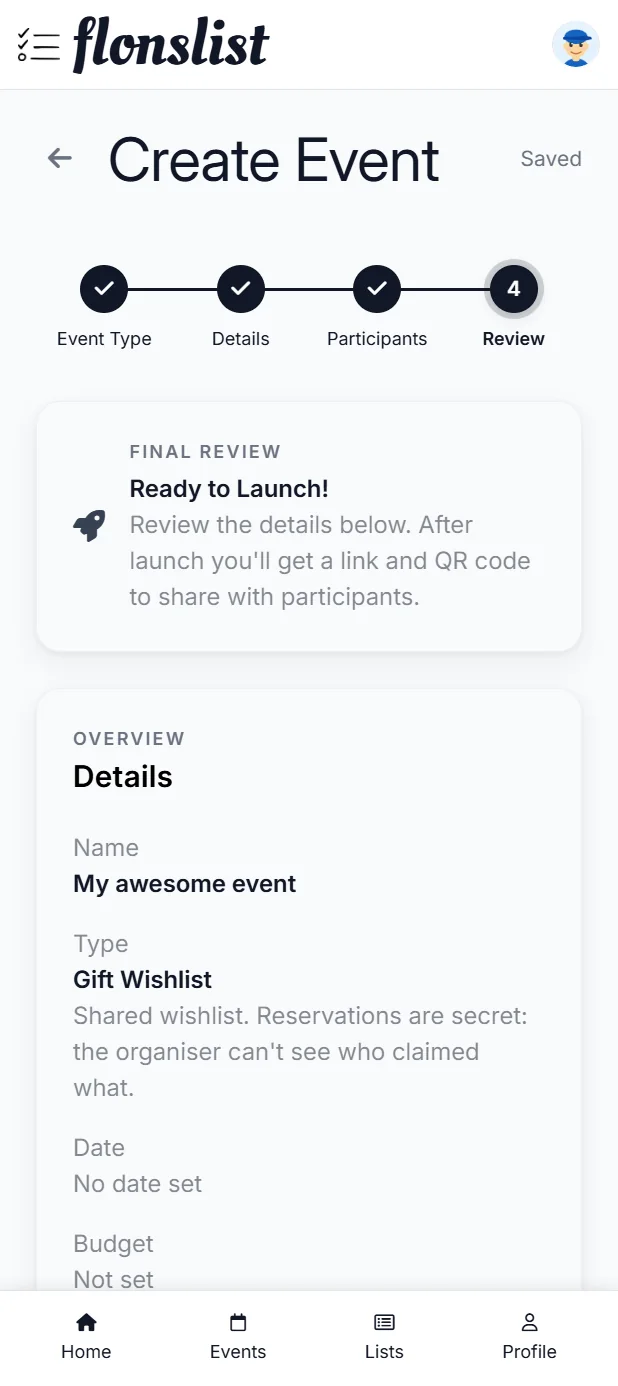
  6. Review and launch

    Check the summary before launch. Email invitations are sent only for email or combined invite modes.
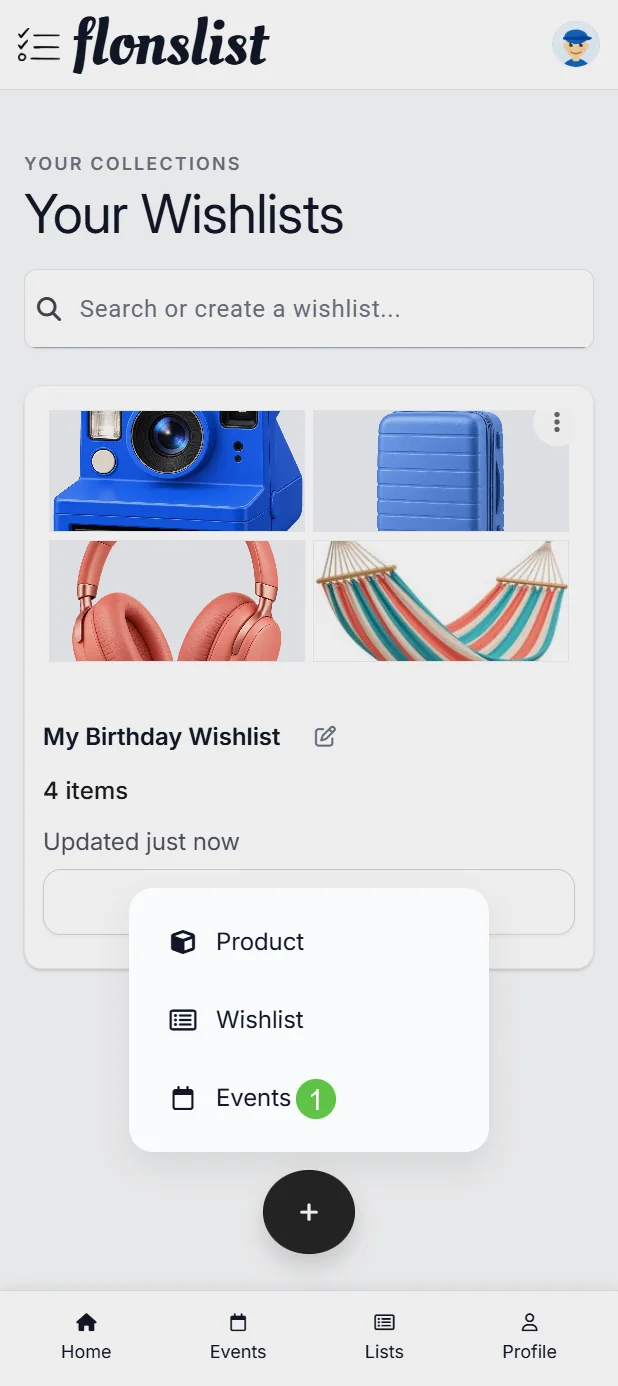
Flonslist mobile wishlist page with the Add menu open and marker 1 highlighting Events.
1. Open Add new and choose Events. Open the image for full size.
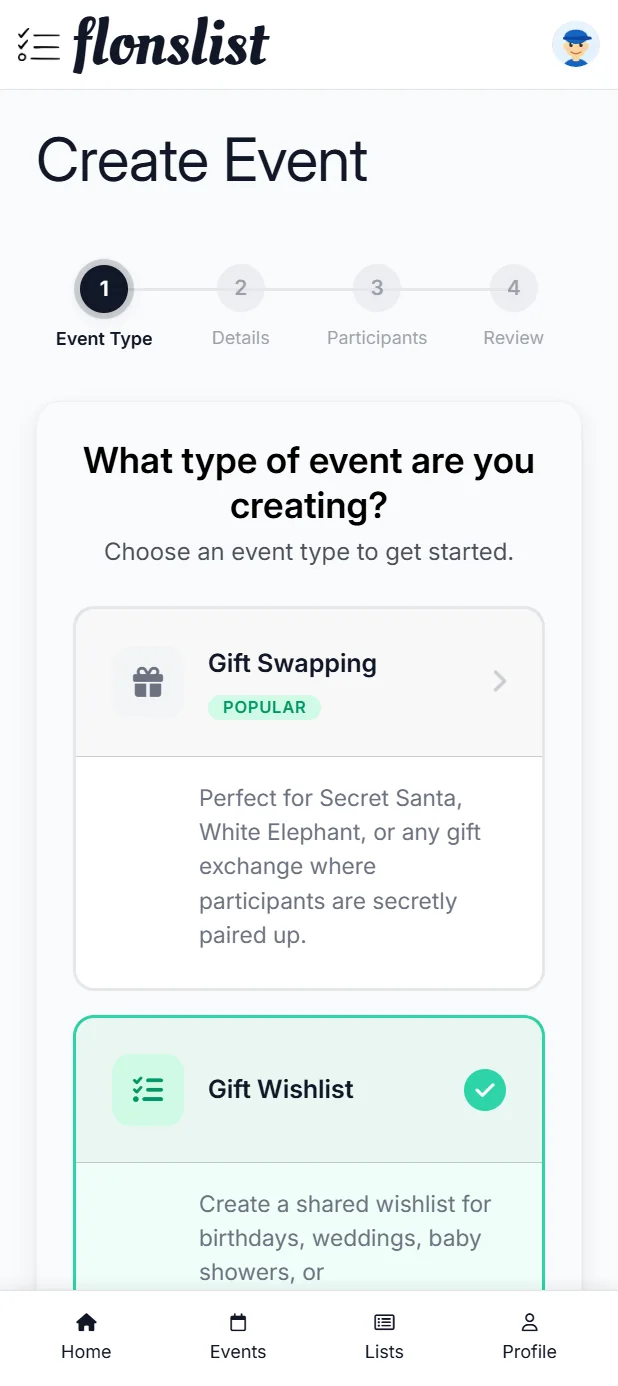
Flonslist mobile Create Event page showing Gift Swapping and Gift Wishlist event types.
2. Choose Gift Swapping for a paired group or Gift Wishlist for one shared list. Open the image for full size.
Flonslist mobile Create Event details step showing the event name and shared wishlist fields.
3. Add the event details and choose or create the shared wishlist. Open the image for full size.
Flonslist mobile Create Event participants step showing Invite by email, Share a link, and Both invitation methods.
4. Choose how participants will be invited, then add any required email addresses. Open the image for full size.
Flonslist mobile Create Event review step showing the final event overview before launch.
5. Review the event details before launching it. Open the image for full size.

Before launch

The creation flow saves draft progress. Review the event type and access method carefully because they affect what participants see and when pairing can happen.