Wishlists and products
How to add a product to a wishlist
Start the product flow
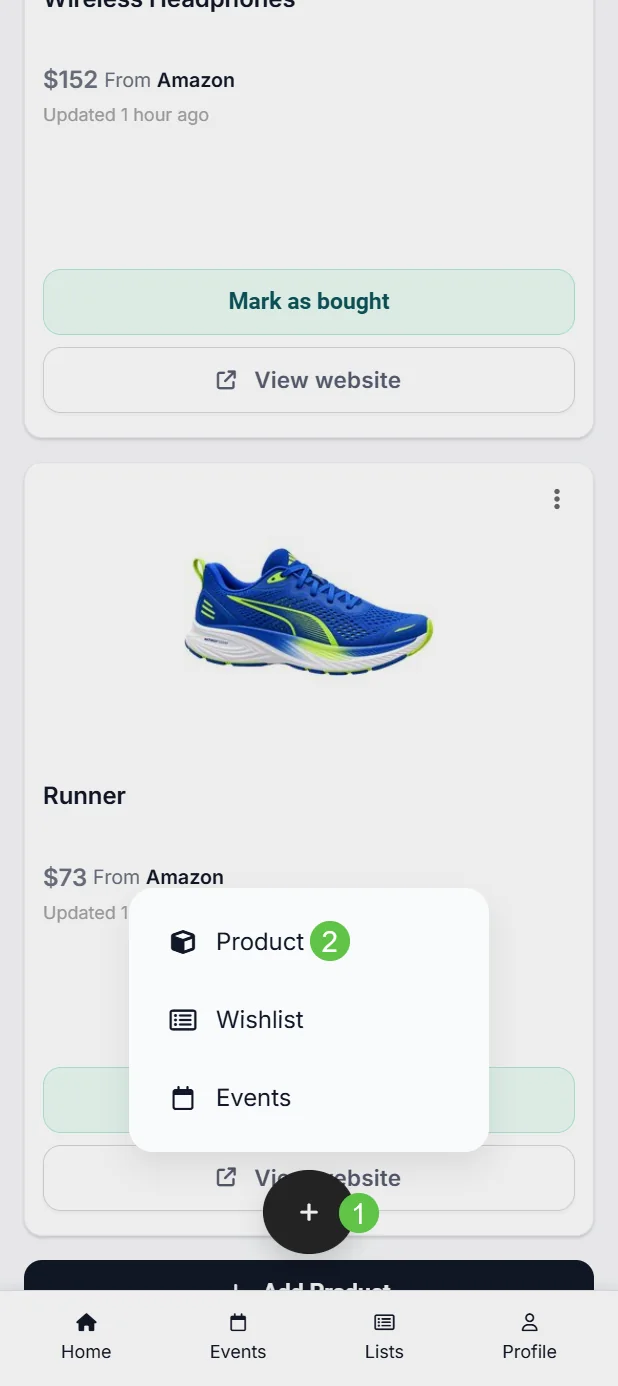
Open the add menu
Select the floating + button, then choose Product.
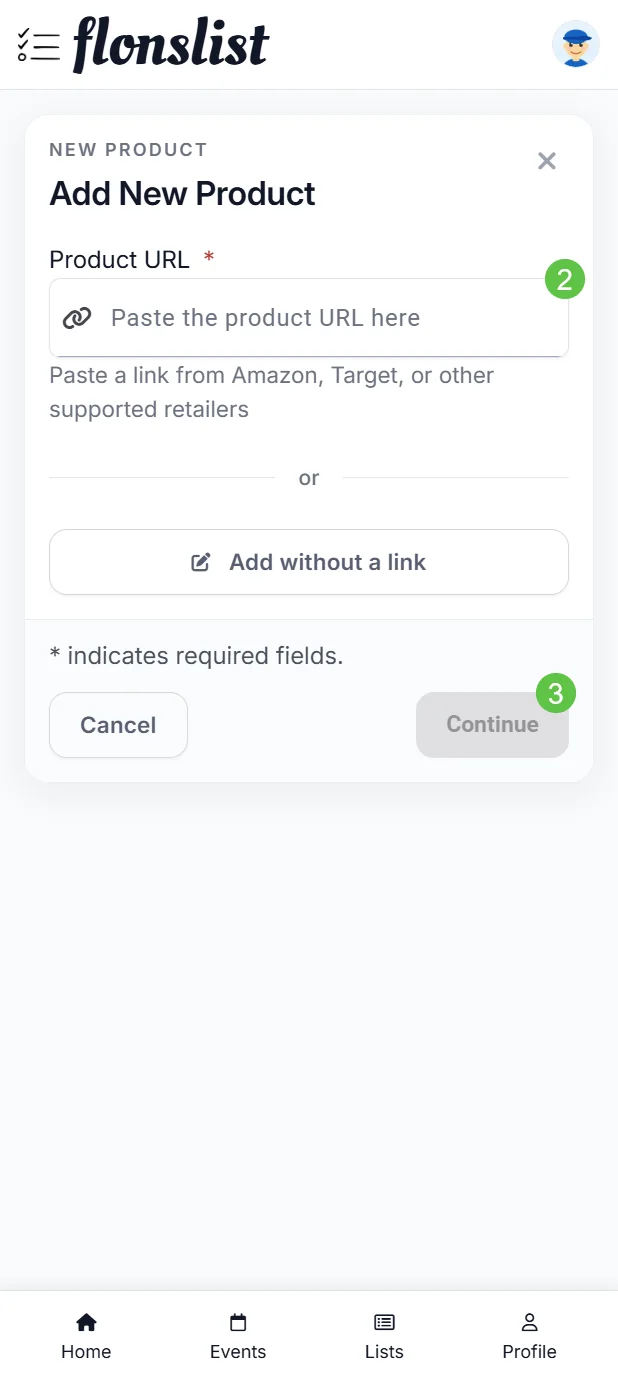
Add a retailer link
On Add New Product, paste a link from Amazon, Target, or another supported retailer. To enter everything yourself, choose Add without a link.
Select Continue
Flonslist reads the page and opens Product Details. If the retailer blocks importing, the page explains which details need attention and other options available.
Review the product details
Check the product image and name
Replace the image if needed and correct the product title.
Confirm the shopping details
Review the price, quantity, store, and notes such as size, colour, or preferred model.
Choose a wishlist
Use Add to List to find an existing wishlist or create a new one.
Save the product
Select Add to List. Flonslist saves the reviewed product to that wishlist.
When a product cannot be filled automatically
Keep the Product Details page open and fill in missing fields manually. For repeat imports from difficult retailers, use the Import to Flonslist helper linked from the warning.